
BiasChecker for Chrome
It reads along with you. One click, and a panel beside the article or YouTube video you are on gives you an expert reading of it: the slant and what is left out, whether the argument and the science hold up, the legal and moral angles, the background, and a synthesis of it all. Highlight a passage to analyse just that. Nothing to copy or paste.
Free 14-day trial, no card needed.
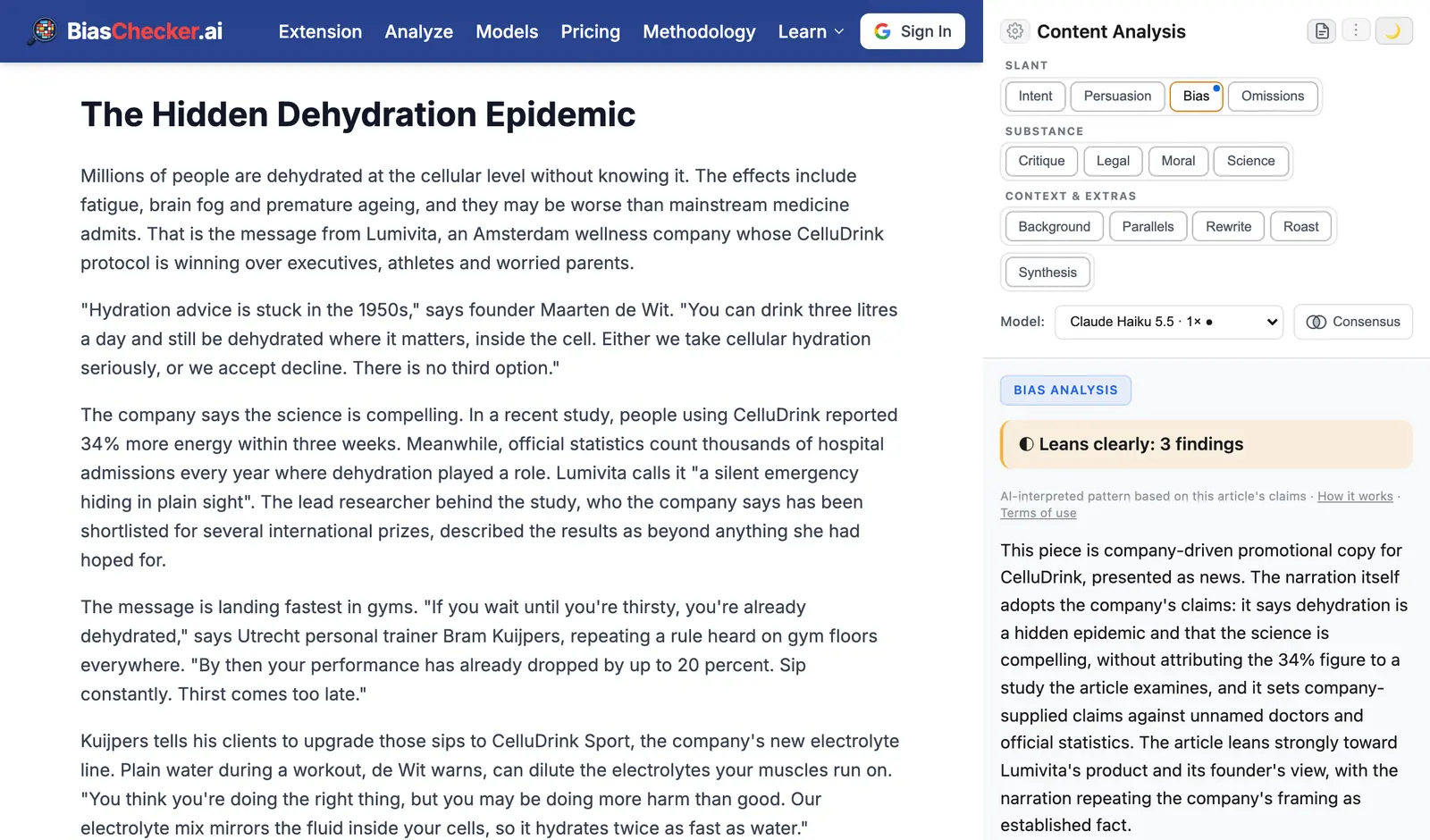
See it in 90 seconds
Articles shown: Global Voices, CC BY 3.0. Photos: Wikimedia Commons, CC BY-SA 4.0. Video shown: NASA.
What it reads
The article you are on.
One click, and it reads the article itself, without the menus and adverts.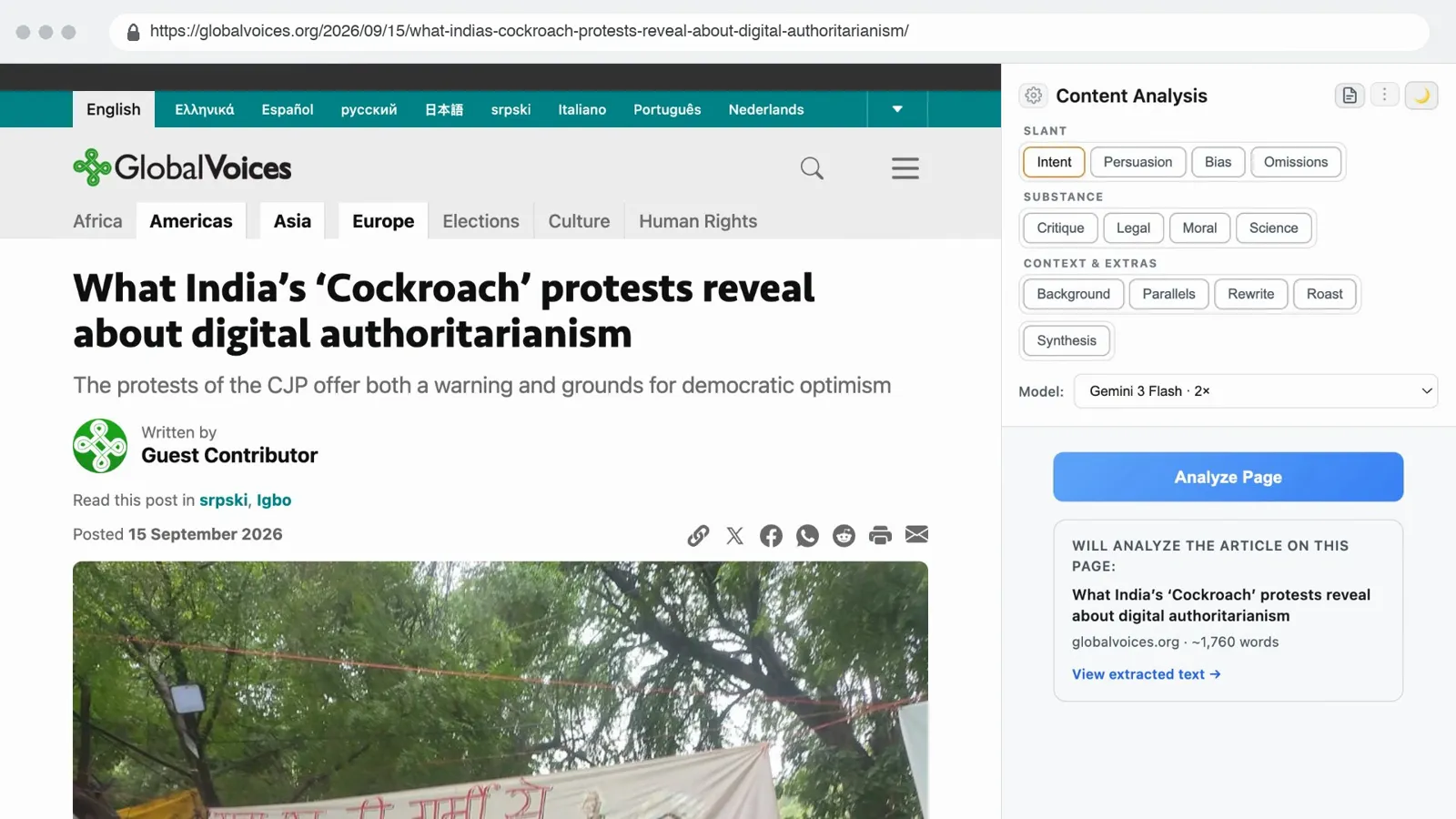
A passage you highlight.
Right-click it and choose an analysis.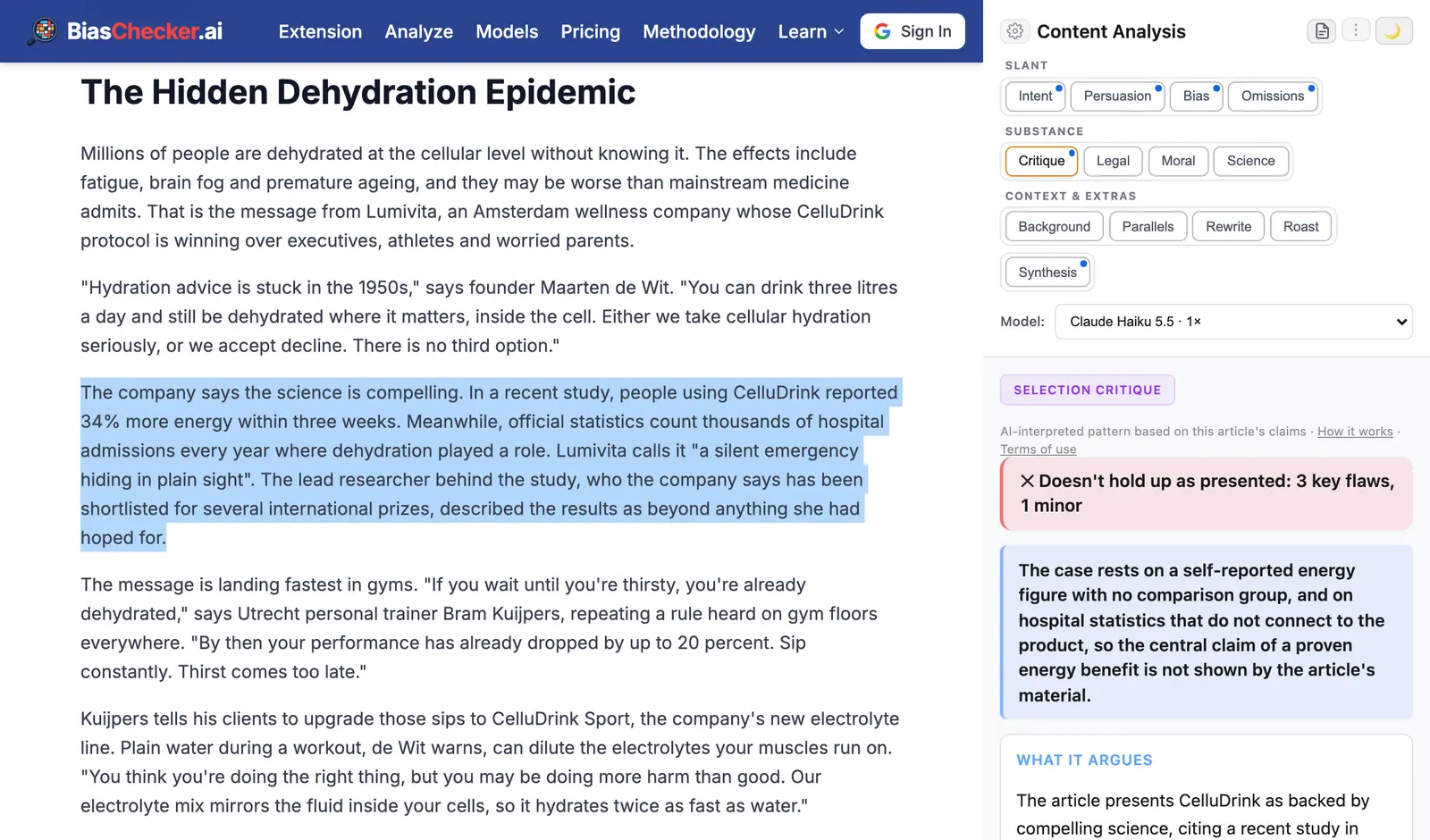
A YouTube video or Short.
It analyses what is said in the video.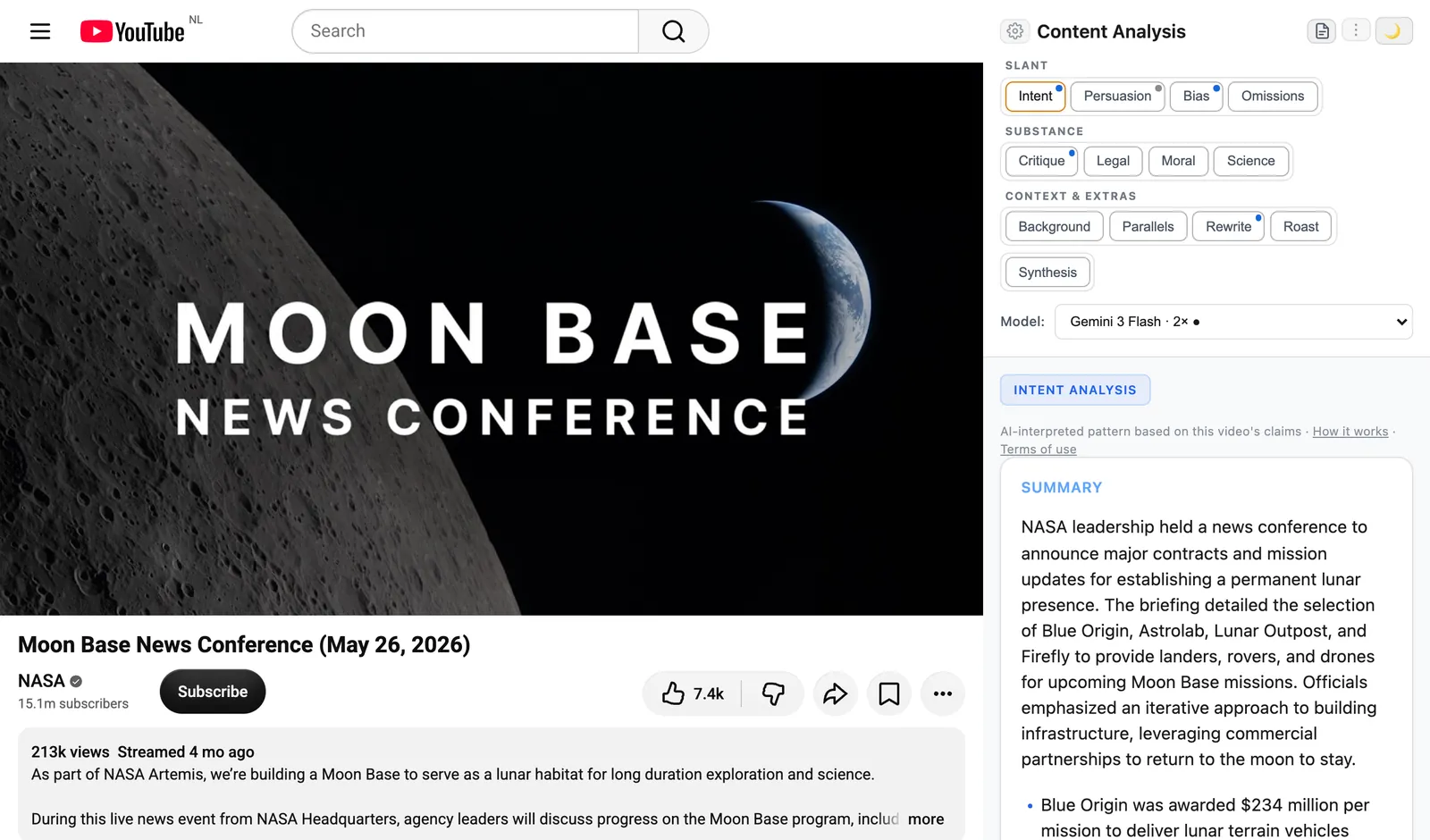
What it tells you
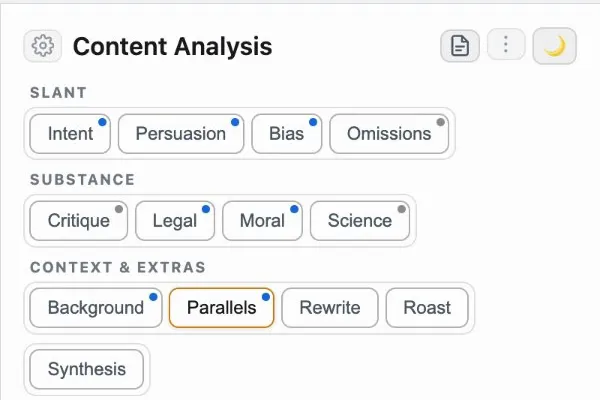
Thirteen analyses, one tab each.
- Intent: what the text says, and what it wants you to conclude
- Persuasion: the persuasion techniques the writing uses, named
- Bias: which way the writing leans, with the lines that show it
- Omissions: the facts and viewpoints the article leaves out
- Critique: whether the argument holds up, and where it fails
- Legal: where the actions reported could raise legal questions
- Moral: how the actions reported measure against shared moral principles
- Science: whether the scientific claims stand up
- Background: what the story is about and how it got here
- Parallels: when this has happened before, and how it ended
- Rewrite: the article rewritten neutrally, and shorter
- Roast: a comedian’s take on the article
- Synthesis: an analyst’s report, built from your other analyses
See each one on an example article →How each analysis works →
Synthesis: the analyst’s report.
Runs after the other analyses and pulls them into one report: what the piece is doing to its reader, how, what checks out, and how to read it.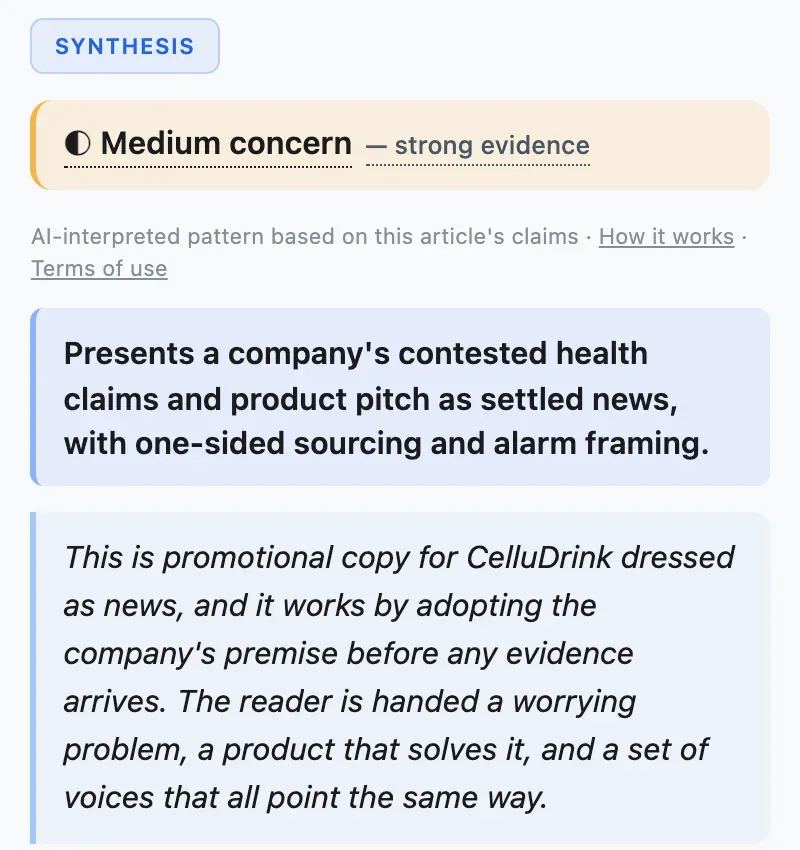
Your tabs, your order.
Choose which analyses show, and in what order.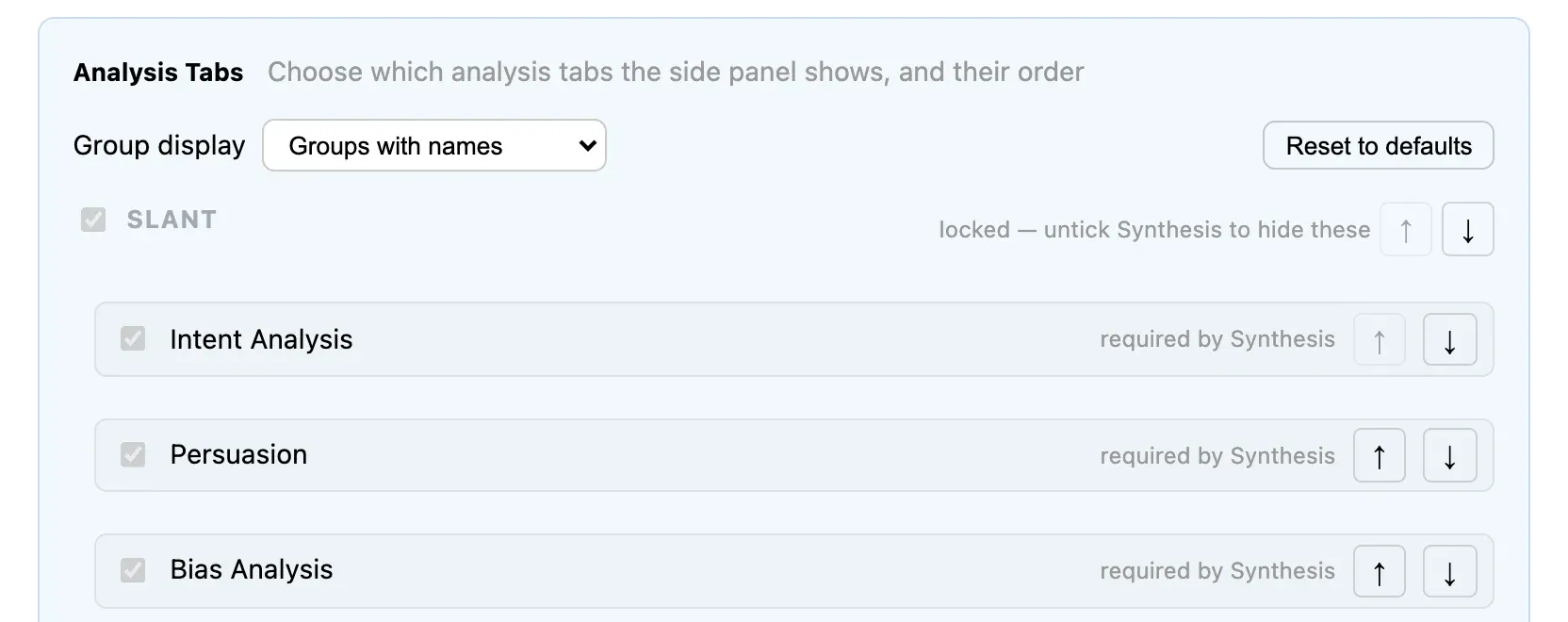
More than one AI
The best models from every major lab.
15 models from 7 makers, all current and all strong, and each notices different things. Pick one for everything, or one per analysis.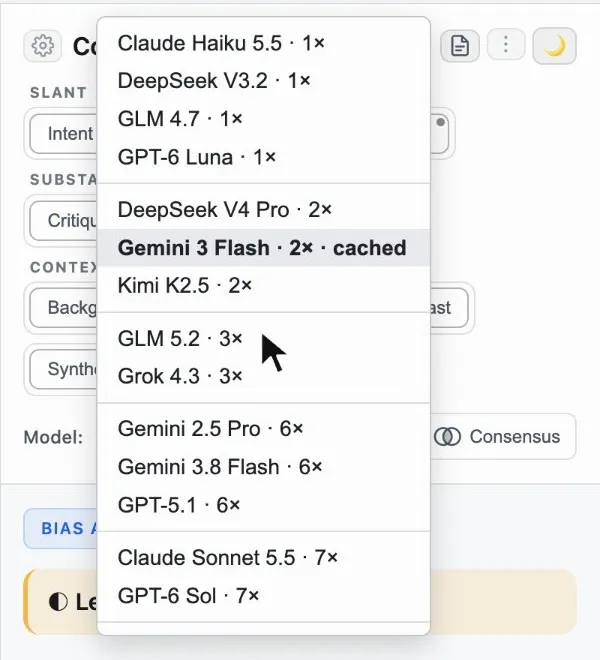
See where the AIs agree, and where they do not.
Compare runs the same analysis on several models and shows their verdicts side by side, for you to weigh. Consensus runs them too, then merges them into one result.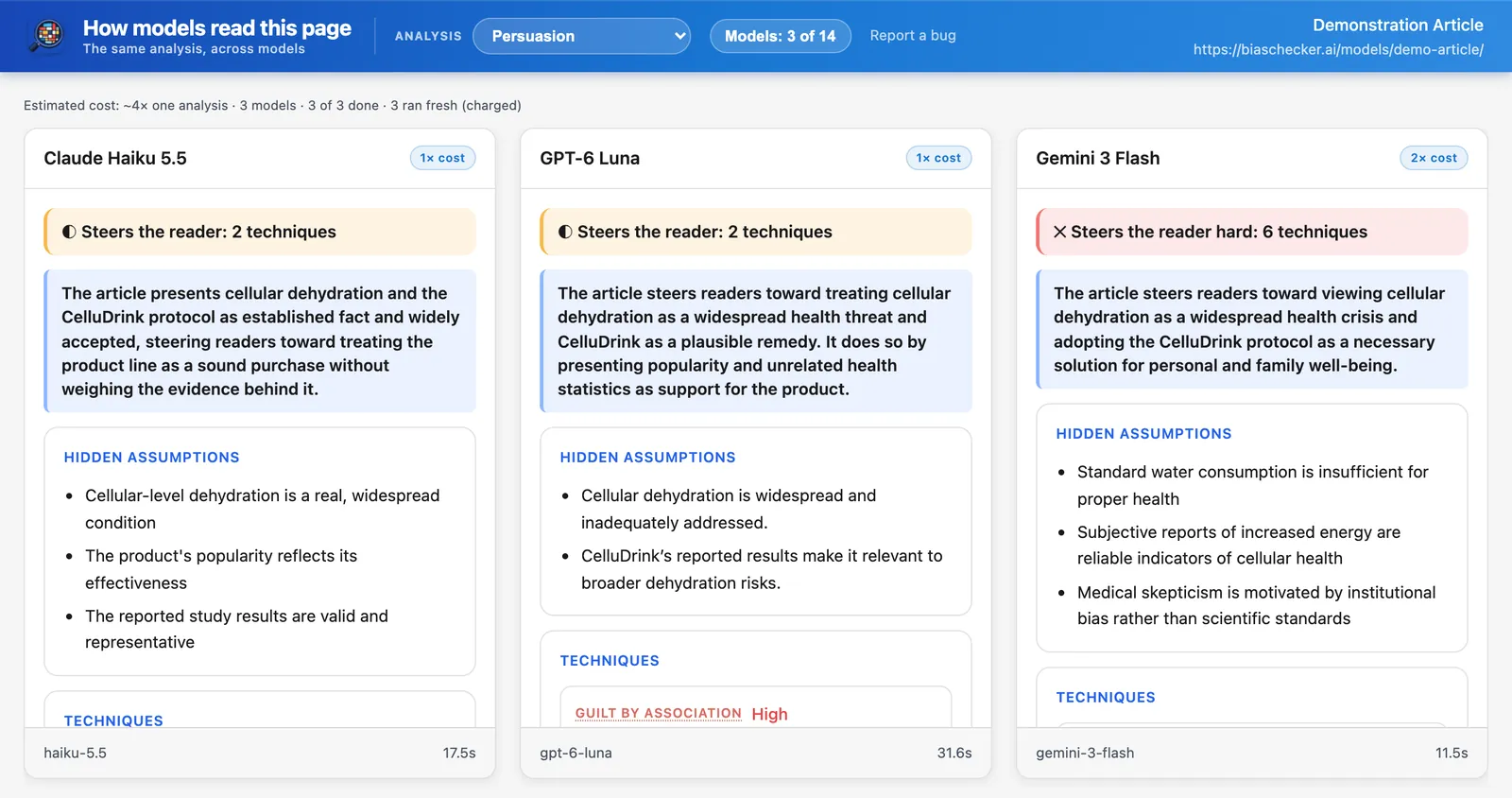
One merged result.
Consensus keeps what two or more models found, and shows what only one saw under its name. Offered on Bias, Persuasion, Legal, Moral and Science.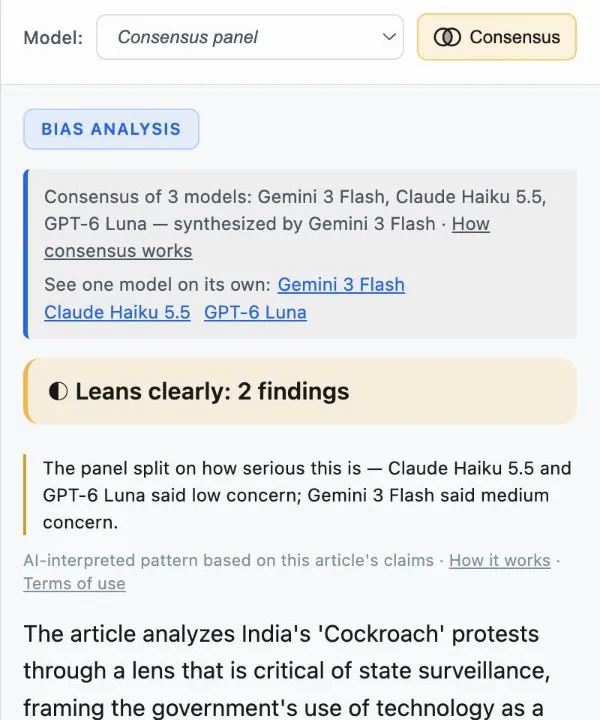
Free when already analysed
Analysed pages open free.
A result someone has already run opens at once and costs you nothing. Community Analyses lists them.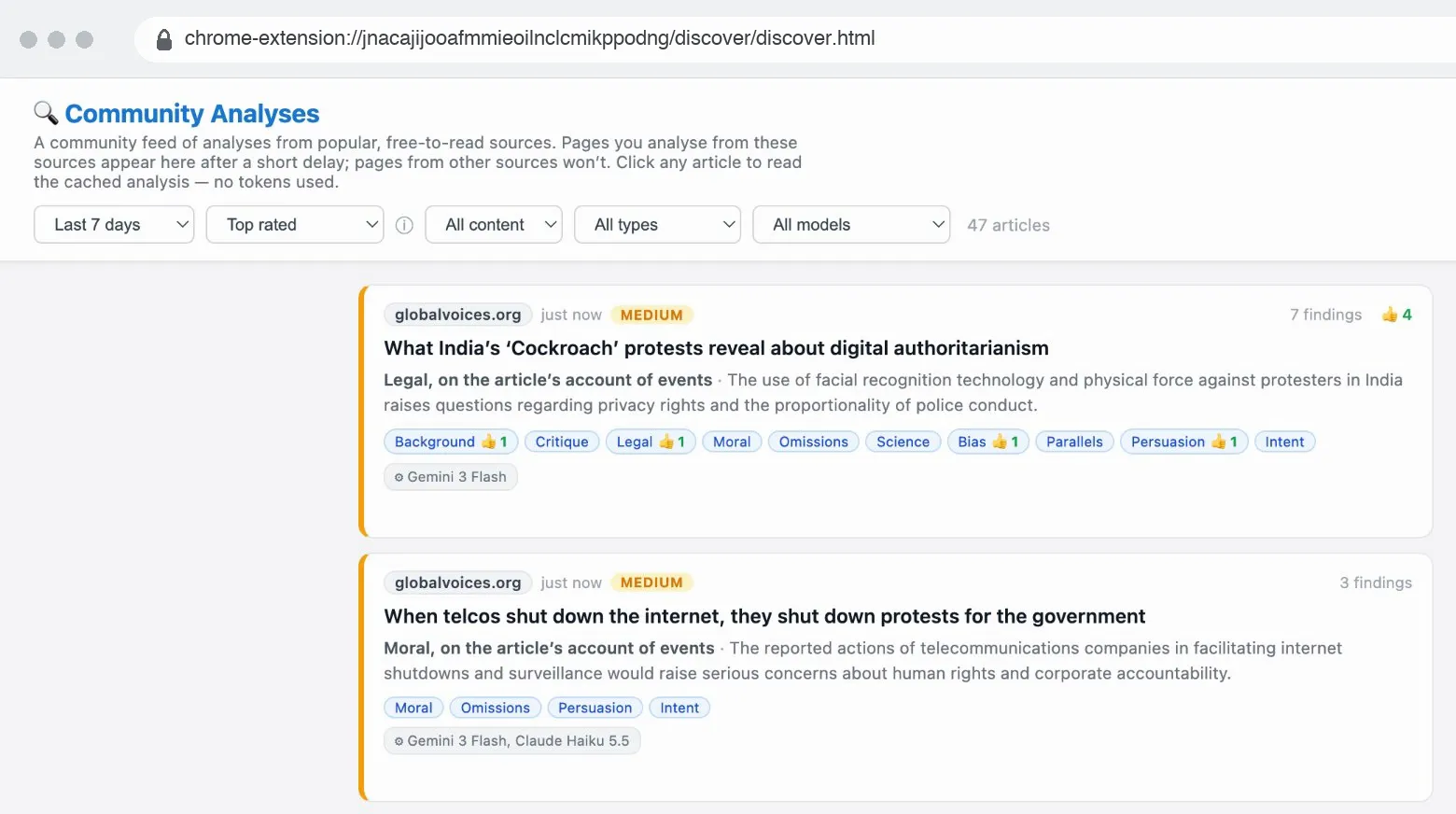
Extension or website?
The extension analyses the article or video you are reading. The website analyses text of your own, which stays private. One account, plan and credit balance covers both.
Install in three steps
- Add BiasChecker to Chrome from the Chrome Web Store.
- Pin it: open Chrome's puzzle-piece menu and click the pin next to BiasChecker.ai.
- Open an article, click the icon and sign in with Google. Your 14-day free trial starts when you first sign in.
Available in the Chrome Web Store in these countries.
The full walkthrough
A 22-minute tour of the extension, feature by feature. Pick a chapter to jump to it.
Articles shown: Global Voices, CC BY 3.0. Photos: Wikimedia Commons, CC BY-SA 4.0. Video shown: NASA.